Automation helper
Create or fix scripts with setup steps and safety notes.
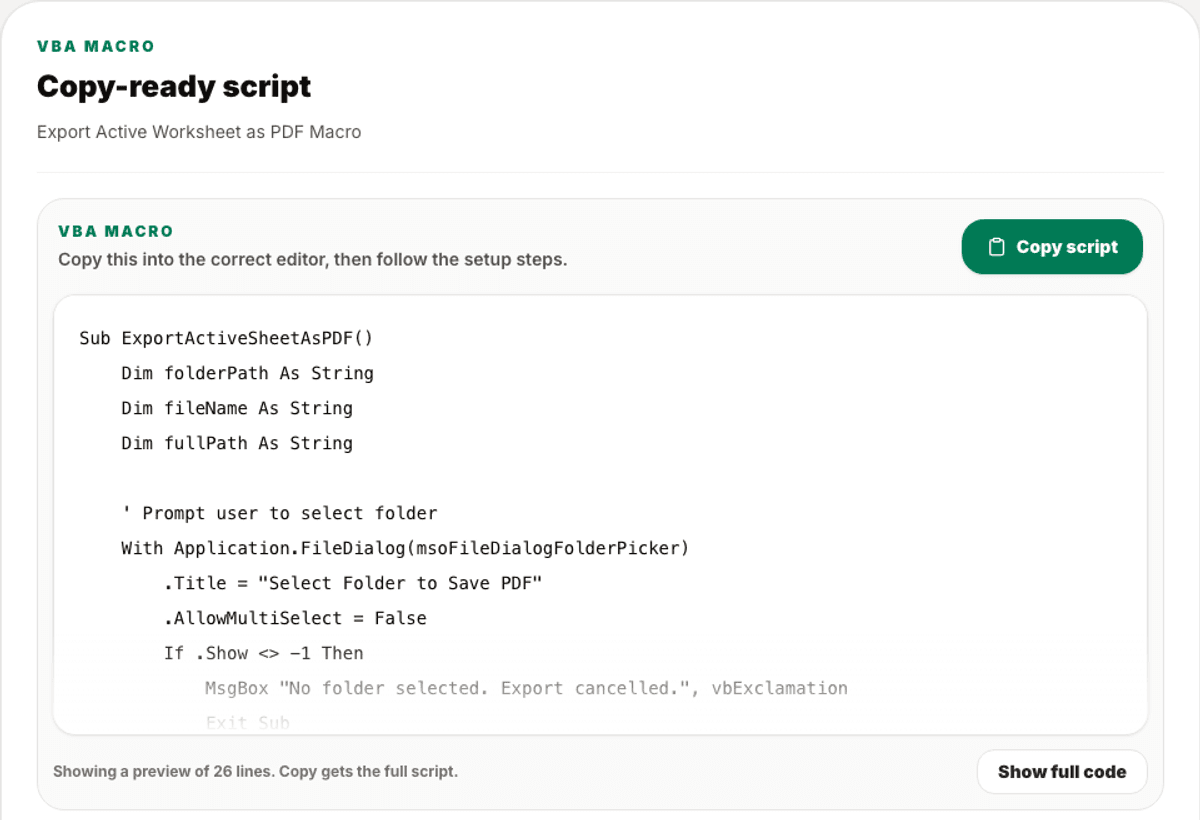
Generate VBA macros or Google Apps Script for spreadsheet automation. Copy the script first, then follow setup, undo and safety sections.
Preview
Script output
3 sample rows show the shape before users commit.
Validation
Checked output
Dangerous operations are called out before use.
Included
6 core areas
Excel VBA generation
Problem
Why this feature exists
Spreadsheet automation is powerful but risky. Users need the macro or Apps Script, but they also need to know where to paste it, how to run it, what it changes, and how to undo or avoid damage.
Approach
How WorkbookWise handles it
WorkbookWise presents scripts as copy-ready output with practical setup steps, what-it-does explanations, where-to-use guidance, undo guidance, safety notes and warnings. The script stays primary; the explanation supports safe use.
Outcomes
What you can accomplish
Who it is for
Built around real workbook owners
Excel power users
Need VBA macros for exports, sorting, splitting sheets or repeated formatting.
Google Sheets teams
Need Apps Script helpers for menus, sheets, alerts or workflow automation.
Operations teams
Need repeated spreadsheet tasks automated without custom software.
Accountants
Need macros for workbook cleanup, PDF exports, sheet splitting or monthly file preparation.
Common workflows
Common tasks you can complete
How it works
From input to useful output
Choose the platform
Select Excel VBA or Google Apps Script before generating or fixing code.
Describe the automation
Write the repeated spreadsheet task and mention column names or sheet names when known.
Copy the script
Use the copy-ready code block as the main output.
Follow setup steps
Read where to paste the code, how to save the workbook and how to run the script.
Check safety notes
Review warnings about overwriting files, deleting rows, permissions or irreversible actions.
Product example
Export Worksheets As PDFs
A script page should show the code first, then setup steps and risk notes below it.
Included
What the flow covers
Trust notes
What it does
Core capabilities
Generate spreadsheet automation from a task description.
Explain or fix existing VBA and Apps Script.
Show setup, usage, undo, safety and warning sections clearly.
FAQ
Frequently asked questions
Does the Scripts page support both Excel and Google Sheets?
Yes. It supports VBA macros and Google Apps Script helpers.
Can it explain existing code?
Yes. Users can paste code and ask what it does, why it fails or how to make it safer.
Should users run every generated script immediately?
No. Users should read setup, safety and warning sections first, especially for delete, overwrite and file export operations.
Will it include undo guidance?
Where practical, the output includes how to undo changes or how to test safely before running on a live workbook.
Why not just show a long code block?
The code is important, but users also need context: where to paste it, what it changes and what can go wrong.
Related features
Continue exploring WorkbookWise
Formula
Create, explain or fix Excel and Google Sheets formulas. The answer stays copy-ready, with a sample sheet example below for context.
Fix My Excel
Upload an Excel or CSV file, keep the original rows, and create a cleaner workbook with mapped columns, formulas, dropdowns, summaries and help notes. Use My Data is the template-specific version when you already picked a target workbook.
Create Workbook
Use the guided workbook helper when the ready-made library is not enough. If a template fits but your old data needs importing, use the separate Use My Data workflow instead.
Related Excel formats
Start from a matching free workbook
Sales and cash
daily sales report format in Excel
Use this daily sales report format in Excel when shops, restaurants and service counters need a clean workbook for daily sales, cash, UPI, card collections and owner review before review, sharing, filing or monthly reporting.
Inventory and stock
stock register format in Excel
Use this stock register format when inventory needs to stay in Excel but the team needs clearer item, supplier, stock and reorder fields.
Projects
project task tracker format in Excel
Use this project task tracker format in Excel when agencies, contractors and internal teams need a clean workbook for tasks, owners, priority, status, due dates and blockers before review, sharing, filing or monthly reporting.
Accounts
cash book format in Excel
Use this cash book format in Excel when small offices and shop owners need a clean workbook for cash receipts, cash payments, daily balances and voucher references before review, sharing, filing or monthly reporting.
Ready to use Scripts?
This page explains the workflow in detail. The app is where the user creates, downloads, saves or exports the workbook.