Excel/CSV upgrade
Turn an old spreadsheet into a cleaner workbook.
Upload an Excel or CSV file, keep the original rows, and create a cleaner workbook with mapped columns, formulas, dropdowns, summaries and help notes. Use My Data is the template-specific version when you already picked a target workbook.
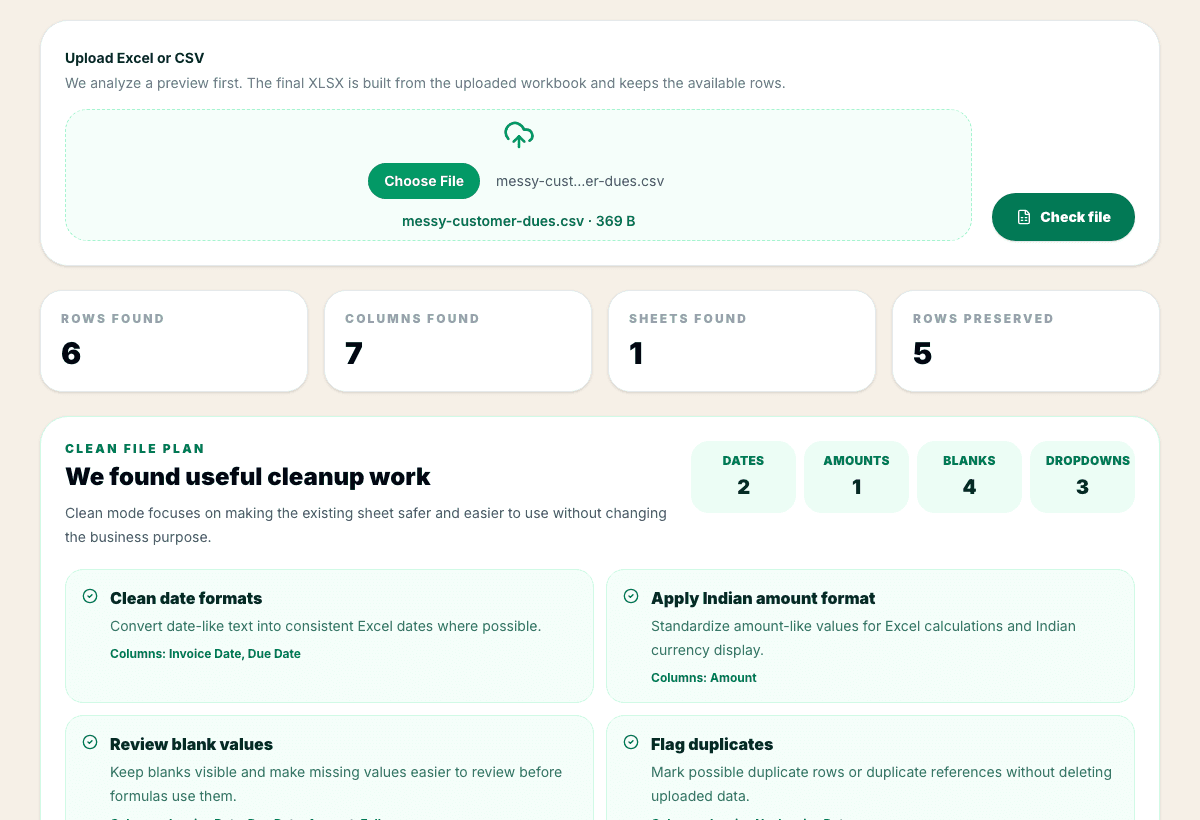
Preview
Upload cleanup
3 sample rows show the shape before users commit.
Validation
Checked output
Uploaded rows are kept intact in the output workbook.
Included
6 core areas
Excel and CSV upload path
Problem
Why this feature exists
Many users do not need a new workbook; they already have a messy Excel or CSV export. The real pain is inconsistent headers, missing helper columns, weak formulas, no summary view and fear that cleanup will damage original rows.
Approach
How WorkbookWise handles it
Fix My Excel keeps the uploaded rows intact, detects the workbook purpose, maps available columns, adds useful structure, and shows the original and upgraded output before the user saves anything. Use My Data uses the same upload-and-map idea but starts from a selected ready-made template.
Outcomes
What you can accomplish
Who it is for
Built around real workbook owners
Shop and office teams
Clean sales, stock, billing, vendor or customer CSV exports.
Accountants
Upgrade client files without manually rebuilding every sheet.
Operations managers
Turn raw trackers into consistent workbooks with summary-ready columns.
Admins
Improve fee, attendance, receipt or staff sheets while keeping the original data visible.
Common workflows
Common tasks you can complete
How it works
From input to useful output
Upload Excel or CSV
Start with the user file instead of asking them to copy data into a new template.
Detect the structure
WorkbookWise reads sheets, rows, headers and likely purpose so the user can confirm the mapping.
Fill safe defaults
The flow suggests practical defaults and asks the user to change only what looks wrong.
Preview original and upgraded
Users can inspect preserved rows and added workbook structure before saving.
Save the upgraded XLSX
The final output is validated and stored under My Workbooks when the user saves it.
Product example
Before and After Cleanup
A raw file can become a workbook with consistent headers, status values and summary-ready helper columns.
Included
What the flow covers
Trust notes
What it does
Core capabilities
Preserve uploaded rows while improving workbook structure.
Map messy columns into clearer workbook fields.
Preview original and upgraded workbook side by side.
Use Template Gallery when the goal is to move old data into a specific ready-made template.
FAQ
Frequently asked questions
Will uploaded rows be changed?
The flow is designed to preserve the original rows while creating a cleaner workbook around them.
How is this different from Use My Data?
Fix My Excel improves the uploaded file itself. Use My Data starts from a selected Template Gallery workbook and maps the uploaded rows into that target structure.
Does it work with CSV files?
Yes. Excel and CSV upload paths are part of the launch scope.
Can I check the output before saving?
Yes. The preview step shows the upgraded workbook before final save.
What if columns are detected incorrectly?
The user can confirm or adjust important mappings before creating the final output.
Where does the upgraded workbook go?
Saved upgraded files appear under My Workbooks for download and later use.
Related features
Continue exploring WorkbookWise
Capture To Excel
Paste business text, upload an invoice image, or upload a PDF bill. WorkbookWise extracts structured rows, flags uncertain values, and lets users download or save reviewed Excel output.
Create Workbook
Use the guided workbook helper when the ready-made library is not enough. If a template fits but your old data needs importing, use the separate Use My Data workflow instead.
Template Gallery
Browse the WorkbookWise template library, preview the workbook shape, then download XLSX files or supported ZIP bundles when it fits your work.
Related Excel formats
Start from a matching free workbook
Reconciliation
bank reconciliation format in Excel
Use this bank reconciliation format in Excel when accountants and finance teams need a clean workbook for bank statement entries, ledger entries, match references and differences before review, sharing, filing or monthly reporting.
GST reconciliation
GSTR 2B reconciliation format in Excel
Use this GSTR 2B reconciliation format in Excel when CAs and accounting teams need a clean workbook for purchase register rows, GSTR-2B rows, match keys and mismatch reasons before review, sharing, filing or monthly reporting.
Ledgers
customer ledger format in Excel
Use this customer ledger format in Excel when business owners and accountants need a clean workbook for customer opening balance, invoices, receipts and closing balance before review, sharing, filing or monthly reporting.
Inventory and stock
inventory count format in Excel
Use this inventory count format in Excel when warehouses, shops and operations teams need a clean workbook for physical count, system stock, variance, owner and adjustment notes before review, sharing, filing or monthly reporting.
Ready to use Fix My Excel?
This page explains the workflow in detail. The app is where the user creates, downloads, saves or exports the workbook.