Template import
Upload your old Excel into a ready workbook.
Choose a validated template first, upload an existing Excel or CSV file, confirm the column mapping, preview the upgraded workbook, and save the final XLSX.
Problem
Why this feature exists
A ready template solves the workbook structure, but many users already have old customer, invoice, stock, fee or expense data sitting in another Excel file. If they must copy rows manually, the template still feels like work instead of a shortcut.
Approach
How WorkbookWise handles it
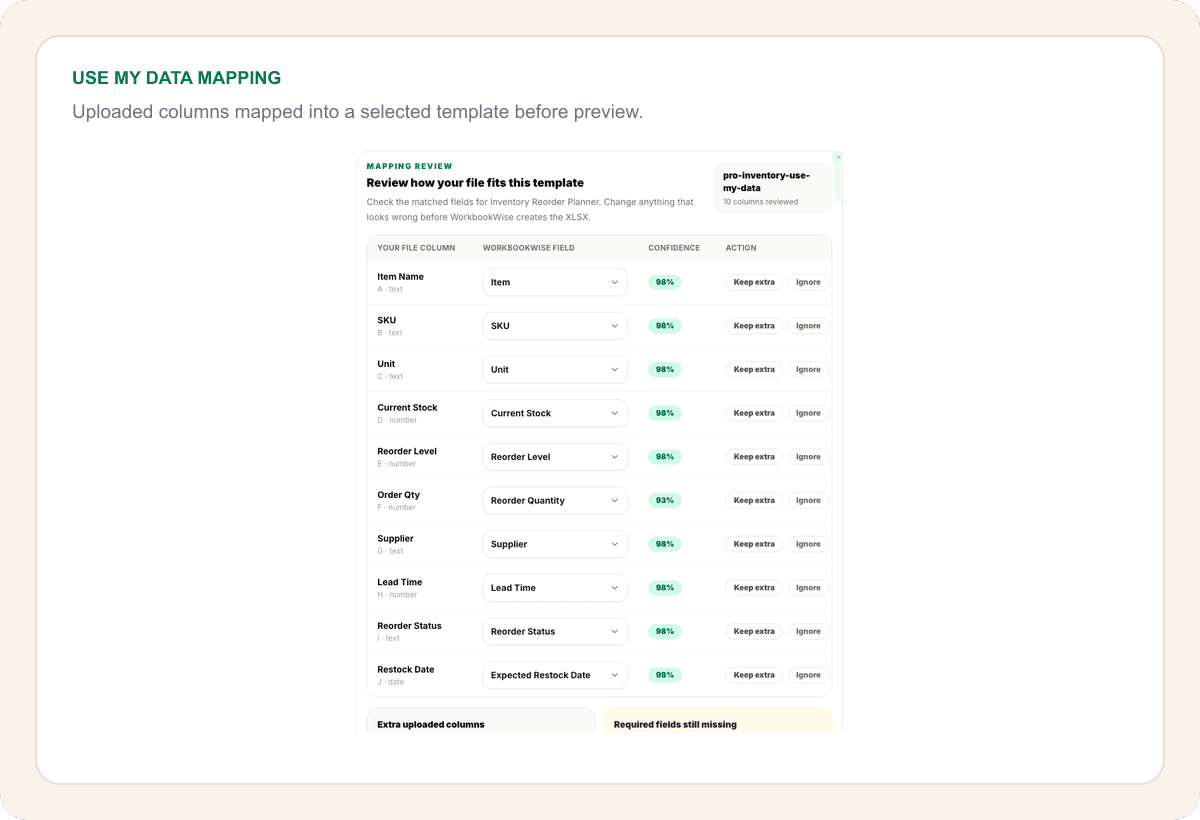
Use My Data starts after the user chooses a template. WorkbookWise reads the uploaded Excel or CSV, detects likely column matches, asks the user to confirm the mapping, then builds a validated workbook using the selected template as the target structure.
Outcomes
What users should get from it
Who it is for
Built around real workbook owners
Retail and trading teams
Move stock, supplier, sales and customer outstanding files into cleaner trackers.
Accountants and office users
Import client registers, purchase files, expense logs and tax-ready tracking sheets.
Schools and coaching centres
Bring fee, attendance and receipt records into a reusable workbook format.
Growing small businesses
Keep old records while upgrading to formulas, dropdowns, summaries and validation.
Common workflows
The jobs this page should answer
Happy path
From public page to useful output
Choose the target template
Start from Template Gallery or a supported business pack workbook so the destination structure is clear.
Upload old Excel or CSV
Use the existing file with real rows. WorkbookWise reads enough to understand sheets, headers and common business fields.
Confirm mapping
Review suggested matches such as Party Name to Customer Name, Bill Amt to Invoice Amount, or Balance OS to Outstanding.
Preview the workbook
See the imported rows inside the selected workbook preview before saving anything.
Save and download
Save the validated workbook to My Workbooks, download XLSX, or continue with supported export paths.
Product example
Customer Dues Import
WorkbookWise maps common old-file headers into a cleaner customer outstanding tracker before the user saves the final workbook.
Included
What the flow covers
Trust notes
What it does
Core capabilities
Start from a selected ready-made template instead of a blank custom request.
Upload existing Excel or CSV rows into the chosen workbook structure.
Confirm detected column mappings before previewing the final workbook.
Save the validated imported workbook under My Workbooks.
FAQ
Frequently asked questions
Is Use My Data the same as Template Gallery?
No. Template Gallery is for browsing and downloading ready-made files. Use My Data imports an existing Excel or CSV into a selected template.
Do I have to pick a template first?
Yes. The flow works best when the destination workbook is known before the file is uploaded.
Can I change the mapping?
Yes. The mapping review lets users confirm or adjust detected field matches before the preview is created.
What file types are supported?
The launch flow supports Excel and CSV uploads.
Is this included in the 1000 Templates Pack?
No. The pack is a one-time ready-made download product. Use My Data is included in Pro and Business.
Where does the imported workbook go?
After preview and save, it appears in My Workbooks and can be downloaded as XLSX.
Related features
Continue exploring WorkbookWise
Template Gallery
Browse the WorkbookWise template library, preview the workbook shape, then download XLSX files or supported ZIP bundles when it fits your work.
Fix My Excel
Upload an Excel or CSV file, keep the original rows, and create a cleaner workbook with mapped columns, formulas, dropdowns, summaries and help notes. Use My Data is the template-specific version when you already picked a target workbook.
My Workbooks
My Workbooks keeps custom and upgraded files separate from the public template gallery, with download, delete, share and export paths.
Ready to use Use My Data?
This page explains the workflow in detail. The app is where the user creates, downloads, saves or exports the workbook.